
You hand someone your iPhone to show them one photo.
They smile, then swipe.
Just once. Maybe twice.
Nothing terrible has happened, but your attention is no longer on the photo you meant to share. It is on the next one. The screenshot after that. The private video sitting three thumbnails away.
The uncomfortable truth is that an iPhone camera roll is excellent at remembering everything—and not especially interested in why one memory should stay farther away than another.
Apple now generally calls it your Photos library. Most of us still call it the camera roll. Either way, it is the same crowded front room where everyday snapshots, screenshots, documents, and deeply personal memories can end up side by side.
Fortunately, you do not need to treat every photo the same. Apple gives you several useful privacy controls, from a locked Hidden album to app-level photo permissions. For more sensitive photos and videos, you can go one step further and move verified copies into a separate vault outside the regular Photos library.
The goal is not to make your photos disappear. It is to put the right distance between them and the people, apps, clouds, and accidental swipes you are actually worried about.
Information checked: August 12, 2026. Menu names may vary slightly by iOS version and region.
The short answer
To keep private photos separate on an iPhone:
- Use Apple’s Hidden album for photos you mainly want out of everyday views.
- Keep authentication enabled and turn off Show Hidden Album if you do not want the collection visible in Photos.
- Review which apps have access to your photo library.
- Check iCloud Photos and Shared Library settings so you know where those photos can appear.
- Remove location information before sharing when it is sensitive.
- For selected photos and videos that need a stronger boundary, import them into a separate local vault, verify the copies, then remove the originals from Photos and Recently Deleted if that matches your risk and recovery plan.
Each step solves a different privacy problem. Hiding, locking, limiting access, separating storage, and backing up are not interchangeable.
Start with the protection already on your iPhone
Before installing anything, spend five minutes tightening the system you already use. For many people, these controls are enough.
1. Move casual-swiping risks into the Hidden album
In Photos, touch and hold a photo or video, tap Hide, and confirm.
Apple says hidden items move out of the Library, other albums, and the Photos widget into the Hidden collection. On current iOS versions, the Hidden and Recently Deleted collections are locked by default and require Face ID, Touch ID, or the device passcode to open. You can also go to Settings → Apps → Photos and turn off Show Hidden Album, removing the collection itself from view in Photos. Apple’s Hidden album instructions
That is a meaningful improvement. If your concern is simply, “I do not want a friend to swipe into this while I am showing another picture,” the Hidden album may be exactly the right tool.
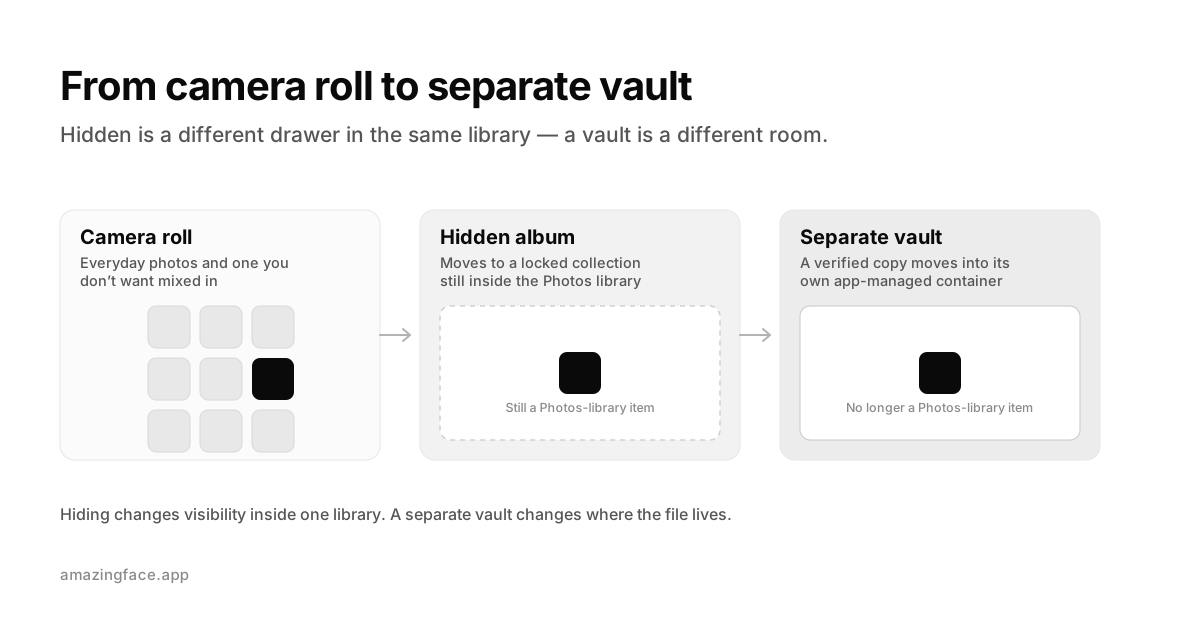
But it is still important to know what “hidden” means. The item remains part of the Apple Photos library. If iCloud Photos is enabled, Apple says photos hidden on one device are hidden on your other devices too. Hiding changes visibility; it does not create a separate storage container or a per-photo “keep this off iCloud” rule.
If that distinction is the decision you are trying to make, see our detailed comparison of the iPhone Hidden album and a separate photo vault.
2. Consider locking the Photos app itself
On supported iOS versions, touch and hold the Photos icon on the Home Screen and look for Require Face ID, Require Touch ID, or Require Passcode. A locked app requires authentication each time it is reopened. Apple’s guide to locking apps
This is useful when you lend someone an already-unlocked phone. It places a front door in front of the entire Photos app, while the Hidden album keeps a second door around selected items.
There is still one shared key: Apple’s app lock and Hidden album can fall back to the iPhone passcode. If the person you are concerned about knows that passcode, this setup may not create the boundary you need.
3. Stop giving every app the whole library
A photo does not have to be opened in Photos to be exposed. Editing apps, social networks, shopping apps, messengers, and utilities may have photo-library permission because you tapped “Allow” months ago and never thought about it again.
Go to Settings → Privacy & Security → Photos and review the list. Remove access from apps that no longer need it, and choose limited access where the app and iOS offer it. Apple lets you change third-party access to Photos and other personal data at any time. Apple’s privacy-control guide
Think of this as closing side doors. Locking the Photos app does not help much if a forgotten collage app can still browse the library from another entrance.
4. Check the rooms connected to your camera roll
Open Settings → [your name] → iCloud → Photos and check whether Sync this iPhone is on.
There is nothing inherently wrong with iCloud Photos. It keeps the library available and up to date across devices, which can substantially reduce the risk of losing memories with one damaged phone. But you should know that it is a synchronized library: Apple says photos and videos are stored in iCloud, and edits or deletions are reflected across connected devices. How iCloud Photos works
If you want normal photos to keep syncing but selected items to stay outside iCloud Photos, follow the verification-first workflow in How to Keep Selected iPhone Photos Out of iCloud Photos.
Then check whether you participate in an iCloud Shared Photo Library. Content moved there is visible to its participants, and iPhone can optionally save or suggest content for the shared library in several ways. Review Photos → Collections → your account → Shared Library, including Sharing from Camera and sharing suggestions. Apple’s Shared Library guide
The point is not to turn everything off. It is to replace “I assume this photo is only here” with “I know which library it belongs to and where that library appears.”
5. Before you share, ask what the photo remembers
Sometimes the sensitive part is not what a photo shows. It is where it was taken.
Apple notes that shared photos and videos can include metadata such as date, time, location, device, and captions. Before sharing from Photos, tap Share → Options, turn off Location, then continue. You can also remove stored location data from an item by opening it, tapping the More button, choosing Adjust Location, and selecting No Location. Apple’s location-metadata guide
That one switch can matter more than hiding the photo afterward. Once another person has received a copy, rearranging your own library cannot call it back.
The turning point: hidden is not the same as separate
At this point, your iPhone is in much better shape. The obvious photos are out of the main grid. Photos is locked. Unnecessary app permissions are gone. You understand which cloud and shared libraries are active.
For most photos, stop here.
But perhaps there is a smaller set that still feels different: an identity document, an intimate memory, a medical image, a private video, or simply something that belongs to a chapter of your life you do not want mixed into the everyday camera roll.
The Hidden album moves those items to a different drawer in the same house. A separate vault can move selected copies into a different locked room.
That distinction matters when you want one or more of the following:
- the files to live outside the regular Photos library;
- access protected by a password separate from the iPhone passcode;
- an app-managed private gallery rather than a generic file folder;
- selected items kept outside an app provider’s cloud photo library;
- a clearly defined recovery model you control.
It does not mean every photo-vault app is automatically safer. Some mainly add an unlock screen. Some store files locally; others use their own cloud. Password recovery, backups, encryption, and deletion behavior vary. “Vault” is a product category, not proof.
Where Amazingface adds another boundary
Amazingface is designed for the photos and videos you want to keep separate from the regular camera roll.
When you import media, Amazingface stores the imported copies as encrypted files inside an app-managed local Vault on your iPhone. You browse them inside Amazingface, behind a Vault password. Amazingface does not create an Amazingface cloud photo library for that Vault media. These are storage and access boundaries; encryption is the technical layer that supports them. Amazingface on the App Store
The practical difference looks like this:
| What you want | iPhone tool that may fit | When Amazingface may add value |
|---|---|---|
| Keep a photo out of normal browsing | Hidden album | When you also want it outside the Photos library |
| Add authentication before viewing photos | Lock Photos; keep Hidden authentication on | When you want a separate Vault password and app-managed storage |
| Reduce what third-party apps can browse | Limit Photos permissions | When selected files should no longer be Photos-library items at all |
| Keep normal photos synchronized across devices | iCloud Photos | When selected Vault items should not enter an Amazingface cloud photo library |
| Privately send selected Vault files | A suitable private messaging or transfer service | AmazingDrop provides end-to-end encrypted delivery through a Relay that also handles the account, device-key, and delivery records needed to route the transfer, and removes the encrypted transfer data after delivery or plan-based expiry (24 hours on Free, up to 72 hours on Pro) |
This is not a reason to move your entire photo library. A smaller, intentional Vault is usually easier to understand, maintain, and recover.
Move private photos without creating a new problem
Separation only works if you remove the old copy. Safety only works if the new copy is complete and recoverable. Those two truths pull in opposite directions, so do not rush.
Step 1: Begin with test files
Choose a small representative set: one photo, one video, and any format or metadata you care about. If the item exists only as an optimized iCloud version, allow the full original to download first.
Step 2: Import and inspect
Import the files into Amazingface. Open the photo at full size. Play the video beyond the first few seconds. Close and reopen the app, then check again.
Step 3: Test the exit before closing the entrance
Export at least one test item back out. Confirm that the resolution, duration, playback, and any metadata important to you survived the round trip.
A private vault should not become a one-way door you discover only during an emergency.
Step 4: Save the Recovery Phrase separately
Amazingface does not retain your Vault password or Recovery Phrase. If you lose both, it cannot restore access to the Vault. Save the Recovery Phrase somewhere secure and separate from the phone, and make sure you can recognize it later. Amazingface password and recovery FAQ
Step 5: Decide what “separate” means for the original
Importing creates the Vault copy; it does not make every other copy disappear. Once you have verified the Vault and recovery plan, remove the original from Photos if your goal is to keep it outside the camera roll.
Deleted Photos items normally remain in Recently Deleted for 30 days and can be recovered during that time. That buffer is helpful while you verify the move. If your immediate privacy need requires permanent removal, empty only the relevant items after you are certain the Vault copy and recovery material are sound. Apple’s delete and recovery instructions
Also consider copies in messages, Files, shared libraries, exports, another person’s device, and backups. No vault can retract a copy that has already left your control.
Step 6: Do not confuse one local copy with a backup
If the Vault is the only remaining copy on the same iPhone, you have improved separation but created a single point of failure. A lost phone, damaged device, forgotten credentials, or deleted app can still take the file with it. Amazingface warns that deleting the app may also delete local Vault data.
For irreplaceable media, keep a second tested copy that matches your privacy needs. Privacy answers “Who can see this?” Backup answers “Can I recover this?” You need to decide both.
A calmer way to think about private photos
You do not need one dramatic privacy setting. You need a few deliberate boundaries.
Use the Hidden album for the photo you do not want appearing during an innocent swipe. Limit app access so a one-time edit does not become permanent library permission. Check shared and cloud paths so “here” has a real meaning. Remove location when the story in the metadata is more revealing than the picture.
And when a photo needs to live apart—not merely lower in the same library—move a verified copy into a separate Vault and remove the original carefully.
The next time you hand someone your phone, the goal is not to watch their thumb.
It is to know that one extra swipe no longer matters.
FAQ
Are hidden photos separate from the iPhone camera roll?
They are removed from the main Library views and placed in the locked Hidden collection, but they remain part of the Apple Photos library. If iCloud Photos is enabled, Apple says hidden photos are hidden on your other connected devices as well.
Is the iPhone Hidden album safe?
It is useful protection against casual browsing. On current iOS versions, it is locked by default with Face ID, Touch ID, or the device passcode, and the collection can be removed from view. It may be insufficient if someone knows your iPhone passcode or if you need the files stored outside Photos.
Can I prevent only one Photos album from syncing to iCloud?
Apple documents iCloud Photos as synchronizing the Photos library and does not provide a per-album “do not sync” control. Hidden items remain library items. To keep selected files outside iCloud Photos while leaving synchronization on for the rest, first move verified copies outside Photos, then remove the Photos-library originals.
Does importing photos into Amazingface delete the originals?
Do not assume an import erases every other copy. Verify the imported files and your recovery plan first, then remove the originals from Photos and, when appropriate, Recently Deleted. Check messages, shared libraries, Files, exports, and backups separately.
Does Amazingface store Vault photos in the cloud?
Amazingface stores imported Vault media as encrypted files on the user’s device and does not operate an Amazingface cloud photo library. AmazingDrop is a transfer feature: its Relay temporarily handles the encrypted transfer data, plus the account, device-key, and delivery records needed to route it, and removes the transfer data after delivery or plan-based expiry (24 hours on Free, 48 hours on Plus, 72 hours on Pro).
What happens if I forget my Amazingface Vault password?
Amazingface says it does not retain the Vault password or Recovery Phrase. The Recovery Phrase can restore access, but losing both may make the Vault permanently inaccessible.