
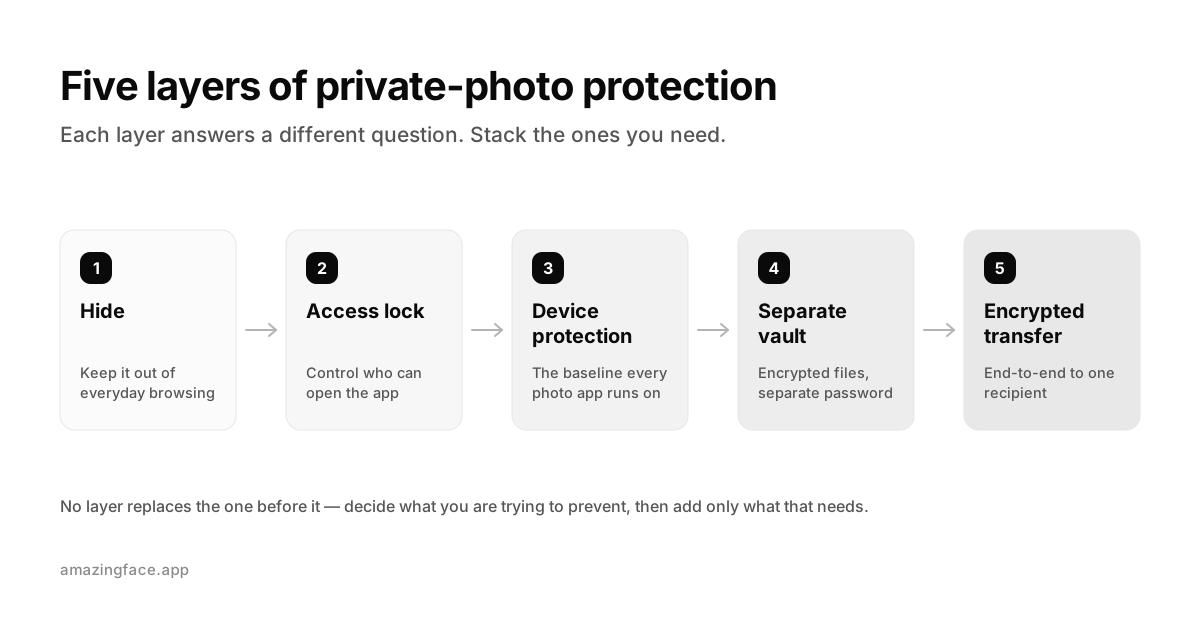
The right way to protect private photos on an iPhone depends on what you are trying to prevent. The built-in Hidden Album is useful for keeping images out of your main library and is locked by default. A separate encrypted vault is useful when you want selected files stored outside the regular Photos library with a separate recovery model. Cloud settings determine where copies may sync, while end-to-end encryption matters when you send a file to someone else.
No single switch solves all of those problems. Start with the threat, then choose the smallest tool that addresses it.
Information checked: July 30, 2026.
Start with one question: who should not see the photo?
“Private” can mean several different things:
| Situation | Main risk | Useful first step |
|---|---|---|
| A friend is swiping through your recent photos | Accidental browsing | Hidden Album |
| Someone borrows your unlocked iPhone | Access to Photos or another app | Lock or hide the app; keep sensitive items outside the main library |
| A family member knows your device passcode | Device credentials are shared | A vault with a genuinely separate password and clear recovery model |
| You do not want selected photos in iCloud Photos | Cloud location and synchronization | Move verified copies outside the Photos library, then remove the originals from the synced library |
| Your locked iPhone is stolen | Offline device access | A strong device passcode and iPhone Data Protection |
| You need to send a sensitive photo | Exposure during transfer | End-to-end encrypted transfer to a verified recipient |
| You lose the phone or forget a vault password | Permanent data loss | A tested recovery and backup plan |
Privacy is not only about keeping someone out. It is also about making sure you do not lock yourself out permanently.
The five layers people often confuse
1. Hiding
Hiding removes a photo from normal browsing surfaces. On iPhone, hidden photos move to the Hidden collection. Apple says the Hidden collection is locked by default and can be opened with Face ID, Touch ID, or the device passcode. You can also turn off “Show Hidden Album” so the collection does not appear in Photos. Apple’s current instructions
This is good protection against an accidental swipe. It does not move the item into a separate third-party vault, and a hidden item remains part of the Photos library.
2. An app access lock
An access lock controls whether someone can open an app. On supported iOS versions, you can require Face ID, Touch ID, or the passcode to open a downloaded app, and you can hide a downloaded app in the App Library. Apple explains the lock and hide controls.
This protects the app entrance. It does not, by itself, tell you how files inside that app are stored, encrypted, backed up, or recovered.
3. iPhone device-level encryption
iPhone does not store ordinary user files as unprotected bytes on flash storage. Apple’s Data Protection system creates per-file keys and ties file accessibility to protection classes and the device’s cryptographic hardware. Apple Platform Security describes the key hierarchy and per-file protection.
This is an important baseline for the entire device. It is not the same as giving one set of selected photos a separate vault password or keeping those photos out of a synchronized photo library.
4. File or vault encryption
A separate vault can store imported photos as encrypted files inside an app-managed container. The questions that matter are not the word “vault” or the presence of a lock icon. Ask:
- Are the photo files themselves encrypted, or is only the screen locked?
- Is the vault password separate from the device passcode?
- Where are thumbnails and metadata stored?
- Can the provider reset the password or access the keys?
- Is app data included in a device or cloud backup?
- Can you export originals?
- What happens if you delete the app?
- Has the design or code been independently audited?
Different photo-vault apps answer these questions differently. Do not assume every vault has the same security model.
Amazingface is one example of a local-first design. It documents that imported photos and videos are stored as encrypted files in a separate local vault, that it does not operate an Amazingface cloud photo library for the vault, and that it cannot recover the vault if both the password and Recovery Phrase are lost. Its current cryptographic and server model is documented on the Amazingface Security page. Those are product design statements, not a claim that any software is invulnerable.
5. End-to-end encrypted transfer
Storage and transfer are separate decisions. End-to-end encryption means a file is encrypted for the intended recipient so that an intermediary transporting the ciphertext does not receive the plaintext or its decryption key.
That does not mean “no server ever participates.” A service may use a relay to temporarily deliver encrypted data. AmazingDrop, for example, encrypts a transfer before upload, uses a relay to deliver ciphertext, and removes the transfer data after delivery or expiration. It is a transfer system, not a permanent cloud photo library. How AmazingDrop works
End-to-end encryption also cannot stop the recipient from saving, photographing, screenshotting, or forwarding a file after it has been decrypted.
A practical protection setup for most iPhone users
Step 1: Strengthen the device first
Use a strong iPhone passcode and Face ID or Touch ID. Apple notes that a stronger passcode increases the effective entropy protecting Data Protection keys. Apple Platform Security on passcodes
Do not treat a four- or six-digit app PIN as a replacement for a protected, up-to-date iPhone. The operating system is the base layer on which every photo app runs.
Step 2: Use the Hidden Album for casual exposure
If your main concern is “I do not want this appearing while I show someone vacation photos,” the built-in Hidden Album may be enough:
- In Photos, touch and hold the photo or video.
- Tap Hide and confirm.
- In Settings → Apps → Photos, keep authentication for Hidden enabled.
- Optionally turn off Show Hidden Album.
The Hidden Album is convenient and integrated into Photos. It is not a separate storage architecture. If iCloud Photos is enabled, hidden items remain part of that synchronized library.
For a full threat-model comparison, read Hidden Album vs Photo Vault on iPhone.
Step 3: Lock an app before lending your phone
If you hand someone an unlocked iPhone, hiding a few photos does not protect Mail, Messages, Files, or every other sensitive app. Use iOS app locking where available and avoid sharing your device passcode.
For short, supervised use, open only what the person needs and keep the phone in view. An app lock reduces casual access; it is not a substitute for erasing a device before a repair that requires you to leave it unlocked.
Step 4: Use a separate vault only when you need separate storage
A separate vault is useful when you want selected items outside the ordinary Photos library, a separate password or recovery model, or files that remain encrypted inside the app’s own storage.
Before moving anything:
- Read the vault’s encryption and privacy documentation.
- Confirm whether the vault uses a separate password or only the iPhone passcode.
- Understand recovery before importing. If the provider cannot recover keys, losing your recovery material can mean losing the files.
- Check export quality, supported photo and video formats, metadata behavior, and app-deletion consequences.
- Import a small test set.
- Open every test item and export one back out.
- Only then decide whether to remove the original from Photos.
Never permanently delete your only known-good copy just because an import progress bar reached 100%.
Step 5: Decide what “off the cloud” means
There are at least three different questions:
- Is the item in iCloud Photos?
- Can the item be included in an iCloud device backup as app data?
- Does the app provider operate its own cloud photo library?
Those are not interchangeable.
By default, iCloud uses encryption in transit and at rest, with Apple holding keys for many recoverable categories. If a user enables Advanced Data Protection, Apple says Photos becomes one of the additional categories protected with end-to-end encryption, and Apple cannot recover the protected data for the user. Apple’s iCloud security overview
Advanced Data Protection changes who holds the keys; it does not make cloud storage local. If your goal is data locality, you still need to decide whether the file should be in iCloud Photos or any cloud backup at all.
If you want selected items outside iCloud Photos while keeping the rest of your library synchronized, read How to Keep Selected iPhone Photos Out of iCloud Photos.
What to do before an iPhone repair
Apple’s first instruction before service is to back up the iPhone or iPad. Apple also says to do as many preparation steps as possible if the device is unresponsive. Apple’s current service checklist
A privacy-first sequence is:
- Create and verify a backup.
- Confirm that you can recover the data you care about.
- Ask whether the repair requires leaving the device and whether the technician needs it unlocked.
- Do not give anyone your Apple Account password; follow Apple’s current instructions for Find My and service preparation.
- If the repair path requires shipping or erasing the device, follow Apple’s official process rather than deleting a few photos and assuming the rest of the phone is private.
A photo vault can reduce what is visible in the normal Photos library, but it should not be presented as a replacement for Apple’s full repair-preparation process.
The availability check most privacy guides miss
Local-only storage reduces one type of exposure but creates a different failure mode: the only copy may disappear with a lost phone, a deleted app, damaged storage, or lost recovery material.
Before calling a setup complete, answer:
- How many verified copies exist?
- Are any copies in a cloud service?
- Who holds each decryption key?
- Can the provider reset access?
- What happens if the phone is lost today?
- What happens if the app is deleted?
- Have I tested an export or restore?
The most private arrangement is not useful if it destroys the only copy of something you wanted to keep.
A low-pressure next step
If the Hidden Album solves your problem, use it. If you specifically want selected files in a separate local encrypted vault, review Amazingface’s security model, recovery and deletion warnings, and supported iPhone experience before deciding whether it fits your threat model.
FAQ
Is the iPhone Hidden Album encrypted?
Files on an iPhone benefit from Apple’s device-level Data Protection, and the Hidden collection is locked by default with Face ID, Touch ID, or the device passcode. The accurate distinction is not “encrypted versus completely unencrypted.” The Hidden Album remains part of the Photos library and uses the device’s access model; a separate vault may add separate file encryption, credentials, storage, and recovery behavior.
Is a photo vault automatically safer than the Hidden Album?
No. “Photo vault” is a product category, not a security guarantee. Compare file encryption, password separation, key storage, cloud behavior, recovery, export, updates, and independent security evidence.
Does end-to-end encryption stop the recipient from keeping a photo?
No. It protects the transfer from intermediaries that do not hold the keys. Once the intended recipient can view the photo, they may be able to save, copy, screenshot, photograph, or forward it.
Should I delete the original from Photos immediately after importing it into a vault?
No. First verify that the imported photo or video opens correctly, that you can export it, and that you understand recovery and backup. Permanent deletion should happen only after you are confident you will not destroy your only recoverable copy.